Connect a Kajabi Offer to your Linktopay checkout
After a successful payment, Linktopay grants your Kajabi Offer through its webhook. Prepare your Offer (step 1) and connect it (step 2).
Help topics: Connect Offers · Troubleshooter · Add people manually · General FAQ
Good to know
Why Offers
- Kajabi supports the Offer webhook as the connection for external payment systems.
- There is no double opt-in or reCAPTCHA, so clients always get access.
Limitations
- Most settings on the Offer page (description, pricing, upsell, cart abandonment, after purchase) do not apply to external payment systems.
- Your client's address details are not sent to Kajabi.
- With a 'ghost offer' (an Offer without Kajabi products), Kajabi still creates a member account for your new client.
Do I need to connect an Offer to every Linktopay checkout page?
Can I use Cart Abandonment or Upsells?
Do Kajabi affiliates work?
Will I see my sales in the Kajabi dashboard?
Step 1: Prepare your Offer in Kajabi
One-time setting
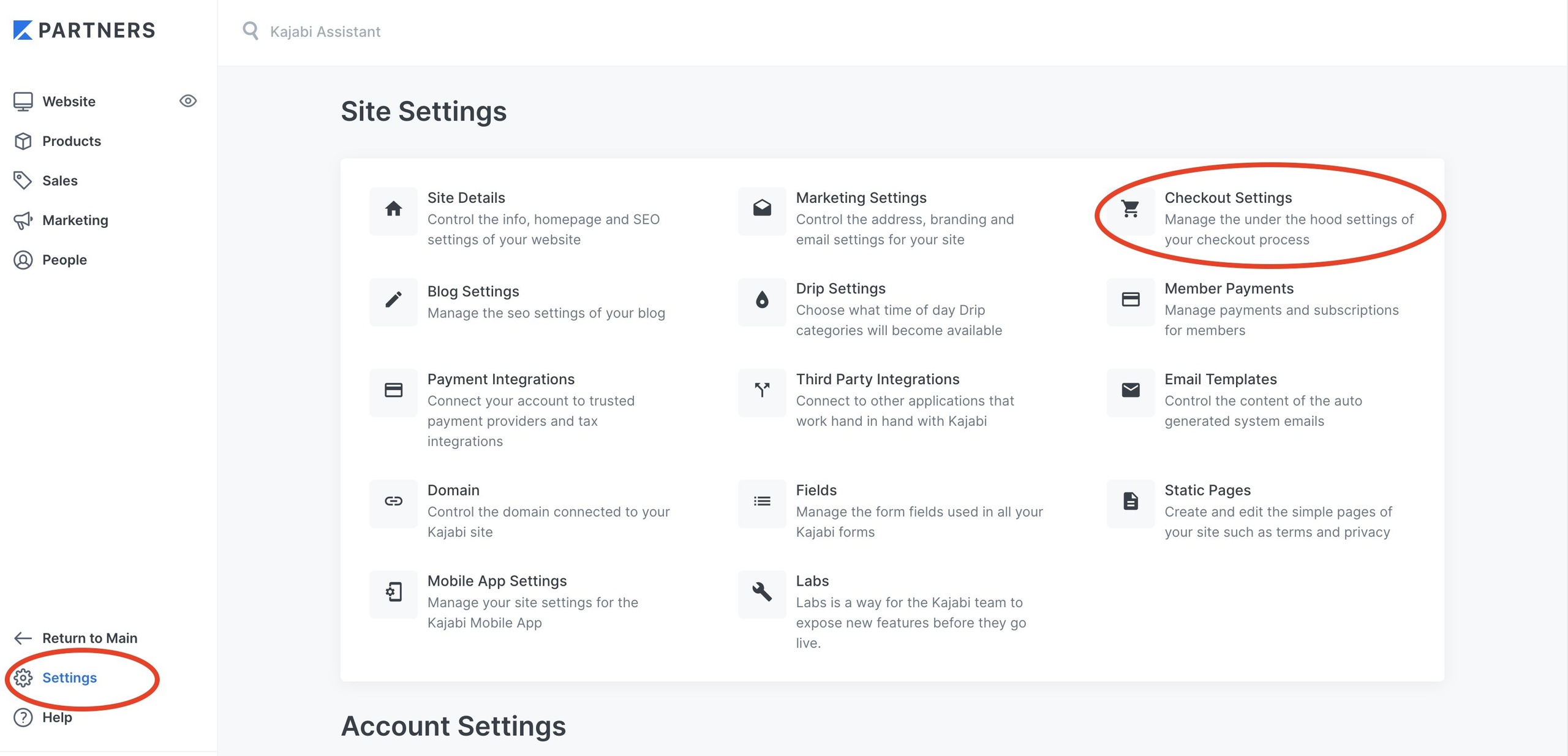
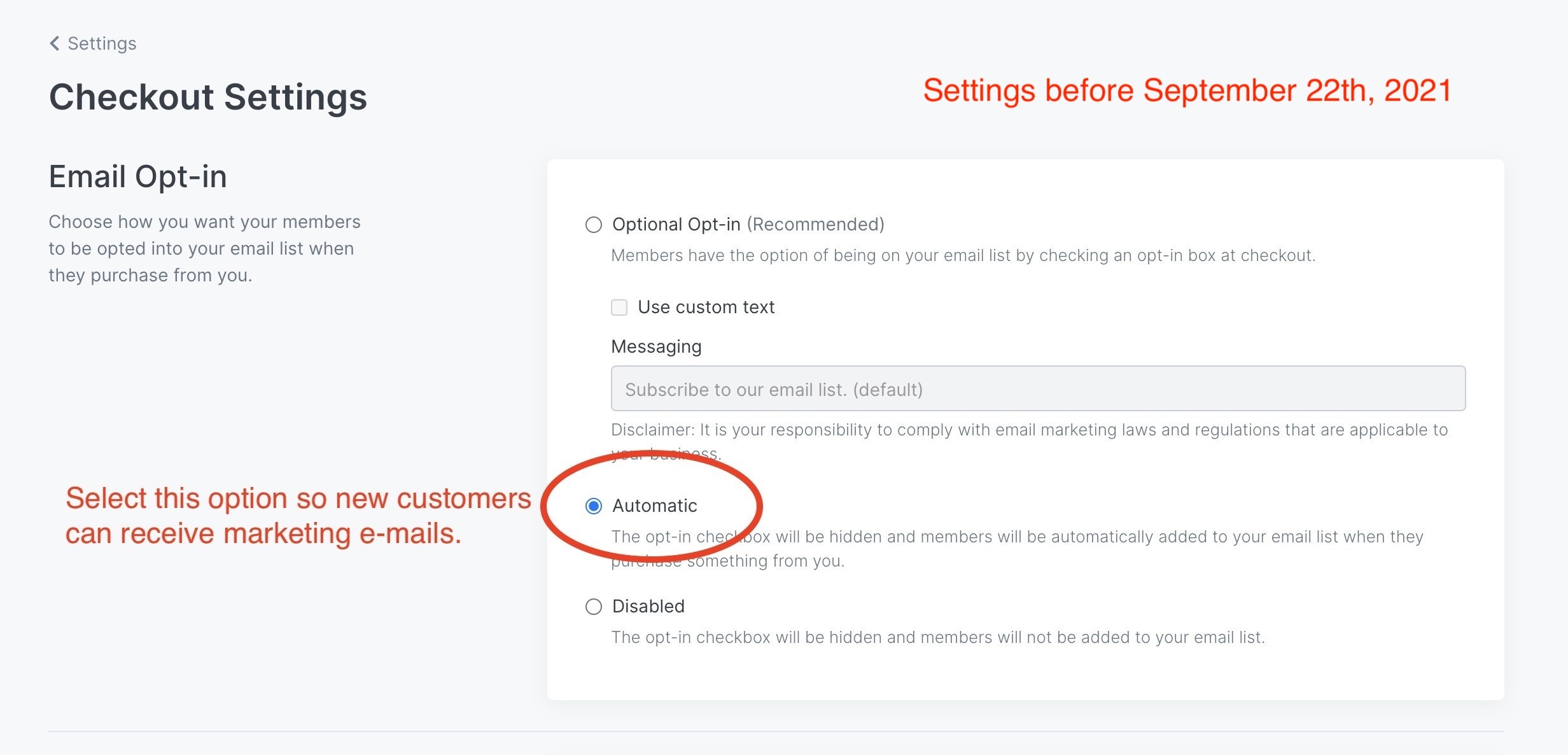
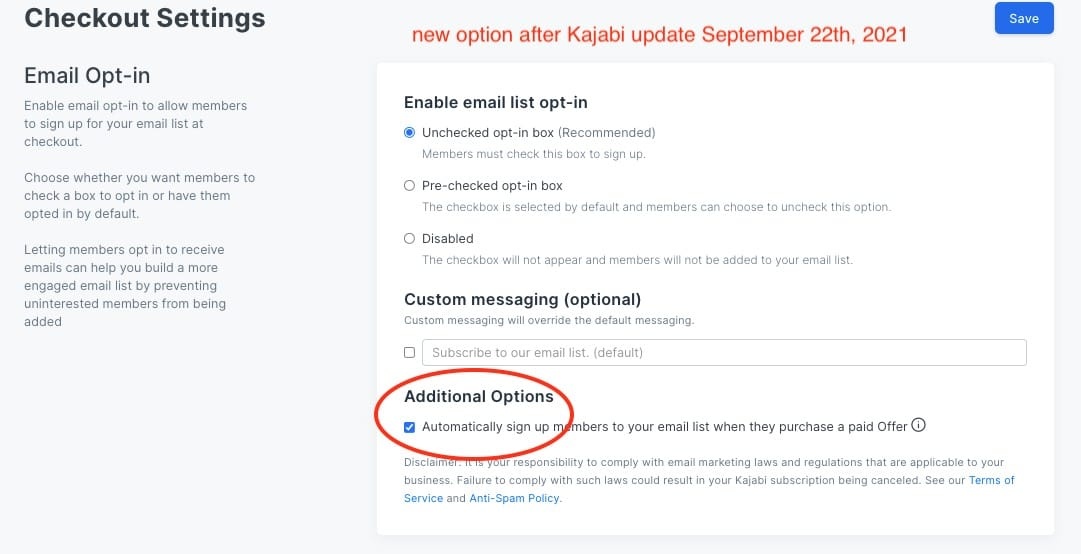
Make sure new clients can receive marketing emails too: Kajabi > Settings > Checkout settings > Email opt-in > Automatic.
Quick steps
- Go to Kajabi > Sales > Offers.
- Create or open your Offer.
- If you sell a Kajabi product, add it under Included Products.
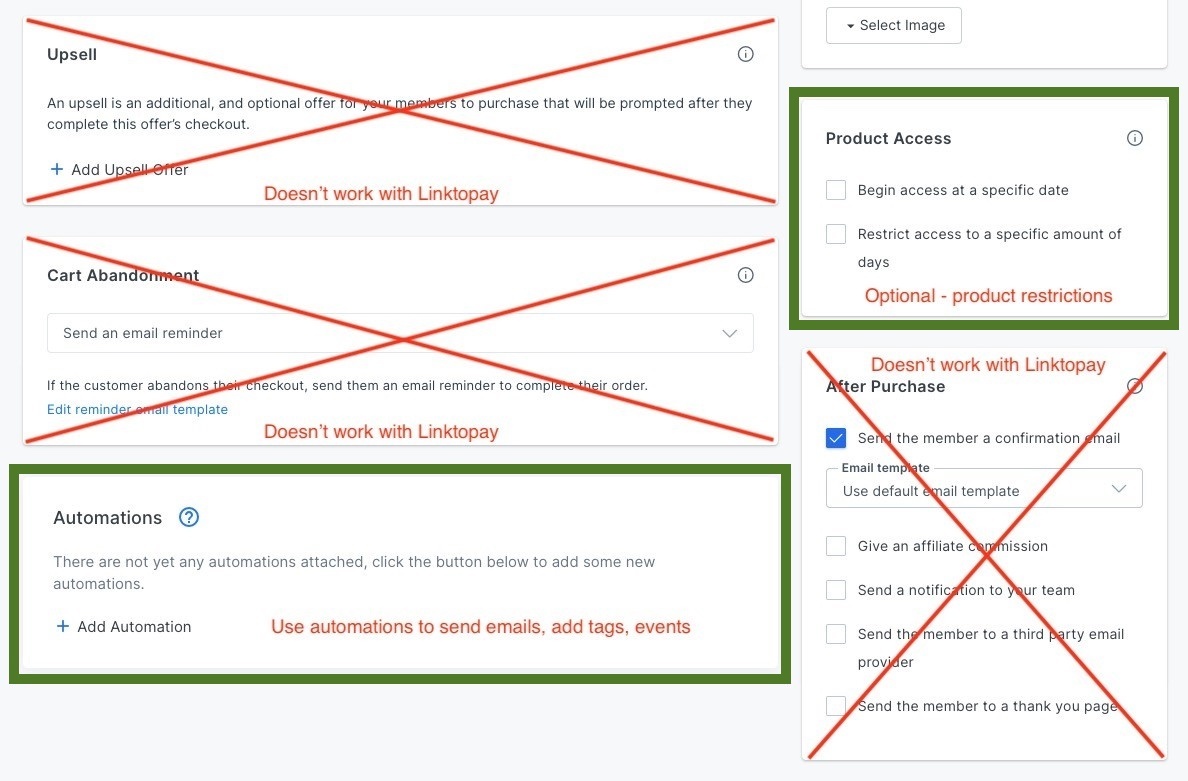
- These fields do not apply: Description, Pricing, Upsell, Cart Abandonment, After Purchase.
- Add an automation with the trigger 'Offer is granted' that sends a welcome email.
- Optional: add other automations, such as tags or events.
- Click Save.
Step by step
- Go to Kajabi > Sales > Offers.
- Create or open your Offer.
- If you sell a Kajabi product, add it under Included Products. If you sell something else, such as coaching, a webinar or an ebook, leave this empty.
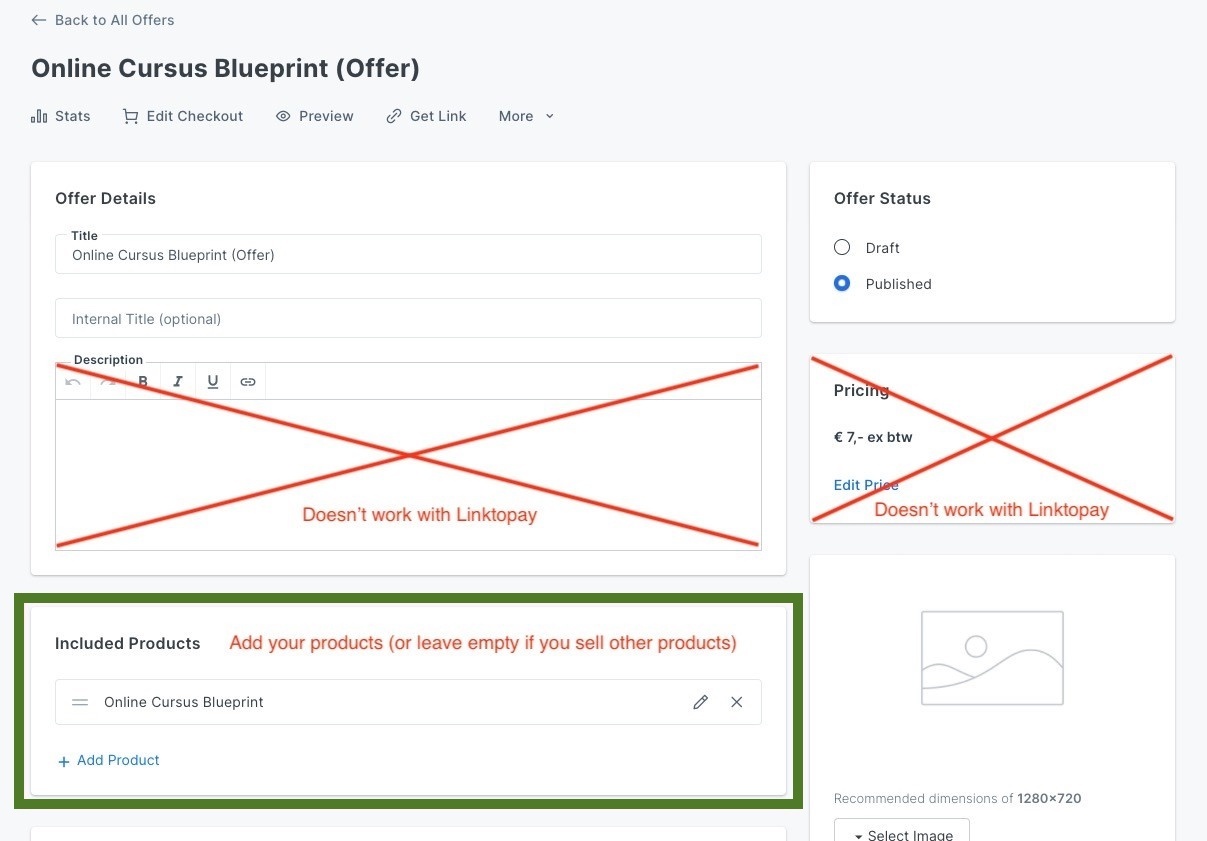
- These fields do not apply: Description, Pricing, Upsell, Cart Abandonment, After Purchase.
- Product access is optional and can be used to limit access to your Kajabi product.
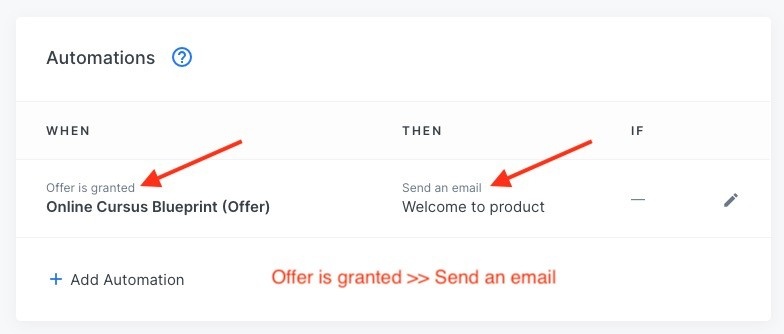
- Add an automation with the trigger 'Offer is granted' that sends a welcome email.
- When you add an automation, make sure 'Offer is granted' is selected.
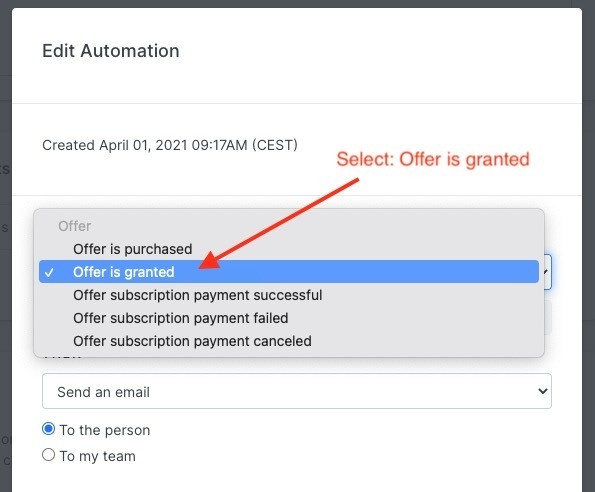
- The recommended automation is 'Send an email', to welcome your new client. Kajabi sends the login details automatically.
Optional: revoke an offer, (un)subscribe to an email sequence, (de)register for an event, add or remove a tag.
These don't work or make no sense here: grant an offer, deactivate from offer, send a single-use coupon.
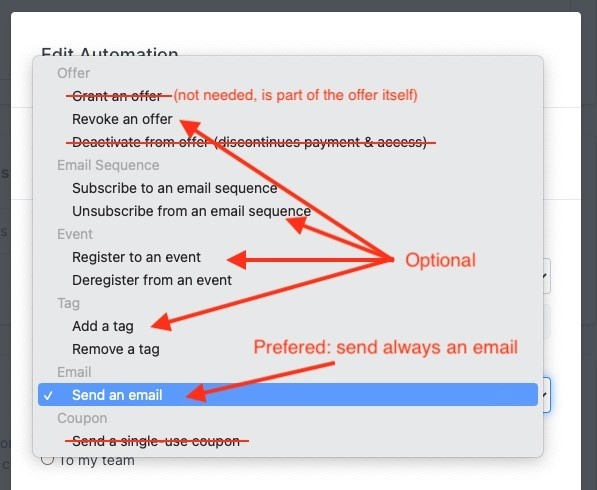
- Double-check that the automation says 'Offer is granted' and preferably 'Send an email'.
Step 2: Connect your Offer to your Linktopay checkout
Quick steps
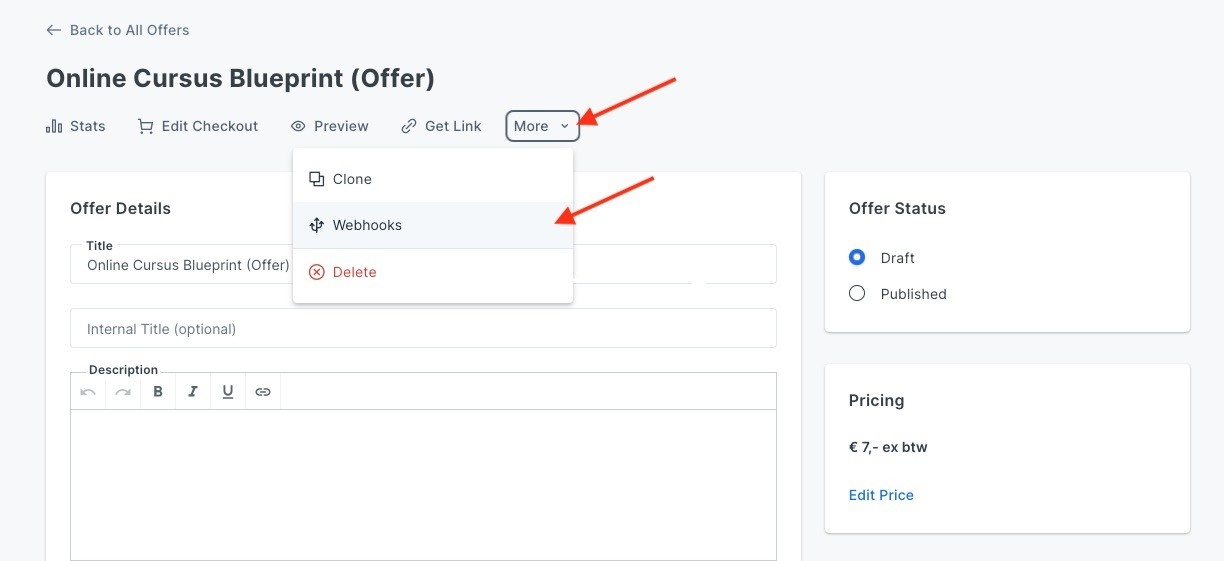
- In your Offer, open More > Webhook.
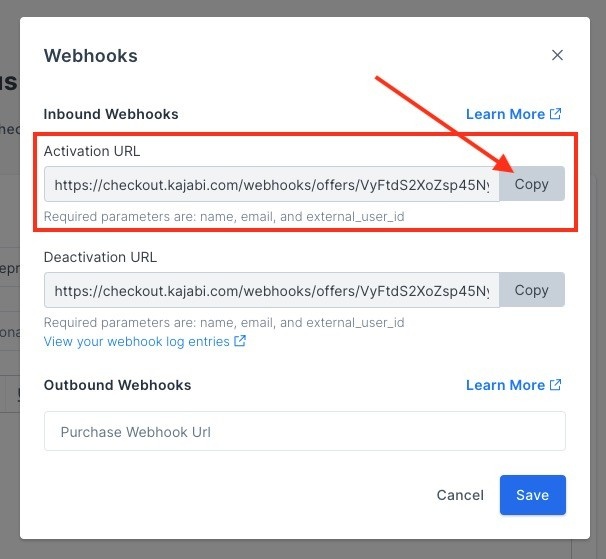
- Copy the activation URL with Copy.
- Go to your Linktopay checkout page and click Customize.
- Open the Linktopay Editor and go to the Kajabi tab.
- Paste the activation URL into the empty field and click Save.
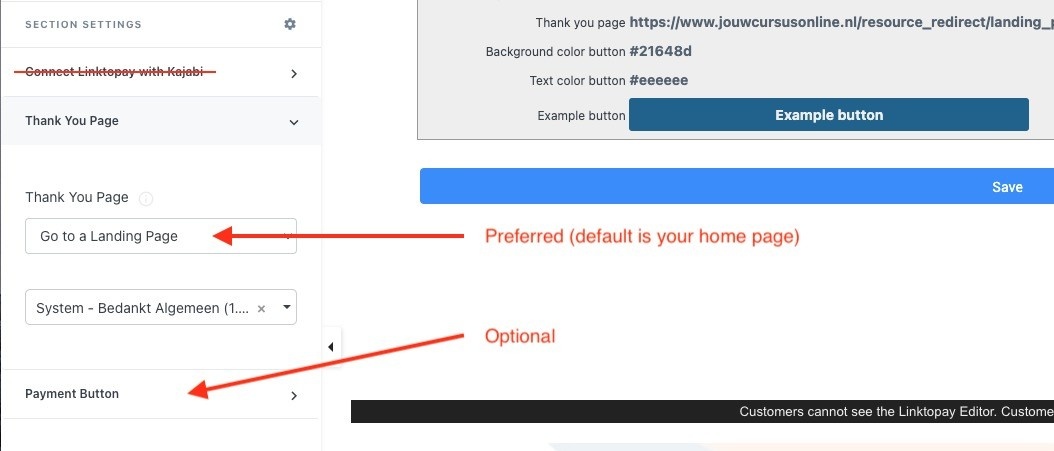
- Recommended: add a custom thank you page in the sidebar.
- Optional: change the colors of the checkout button in the sidebar.
- Close the Linktopay Editor.
- Click Save and close the page.
Step by step
- In your Offer, open More > Webhook.
- Copy the activation URL with Copy.
- Go to your Linktopay checkout page and click Customize.
- Open the Linktopay Editor and go to the Kajabi tab.
- Paste the activation URL into the empty field and click Save.
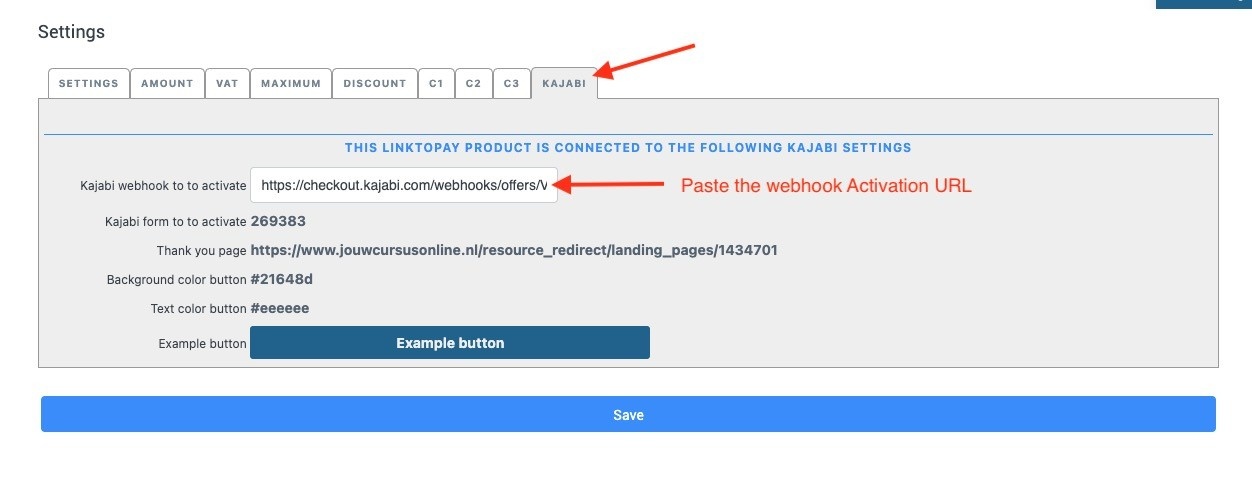
- Recommended: add a custom thank you page in the sidebar.
- Optional: change the colors of the checkout button in the sidebar.
- Close the Linktopay Editor.
- Click Save and close the page.